Top 5 Adobe InDesign keyboard shortcuts for text
Hidden gems of Adobe InDesign to help designers wrangle images. Top tips. PageProof Green.


Adobe InDesign is no stranger to shortcut keys. You can also follow on from our top 5 hidden gems for wrangling imagery. Did you know at the last count there were over 400 of them defined from a possible 1300? That’s some serious shortcuts if you can remember them – AND you can define extras of your own. Being able to quickly wrangle text is a designer’s superpower. Here is our guide to using Adobe InDesign shortcuts that are so helpful and rarely discovered.

5 InDesign shortcuts not to be missed

We’ve boiled down our top 5 shortcuts related to text with the premise our team had to find them AMAZING and rarely discovered.

1. Quick Apply

Style your text at lightning speed with quick apply – have your character and paragraph styles set up first, then you can quickly apply them to your selected text using command + enter.
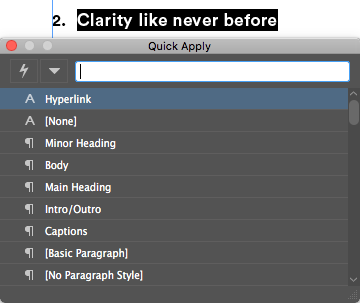
Adobe InDesign_QuickApply- Clarity like never before - Hyperlink - Minor Heading - Body
Quickly view and apply a style to selected text

2. Tracking & leading

Select your text, then use option + arrow keys (or alt + arrow keys) and you can adjust the tracking (left & right arrows) and leading (up & down arrows).

Extra tip: You can adjust the increments of these adjustments in InDesign Preferences.
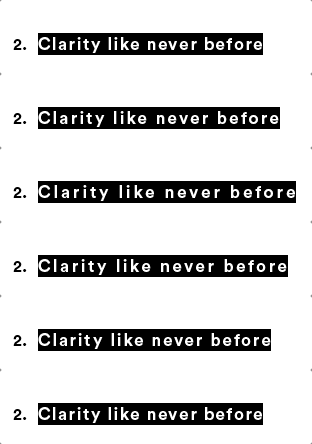
Adobe InDesign_Tracking- Clarity like never before-adjusting tracking and leading
Adjust tracking option + leftright arrow keys

3. Add columns to your text box

If you draw a text box and then realize you’d like it to have columns, hold the mouse down as you’re drawing and tap the right arrow key to add as many columns as you need – and they’ll be linked already too!
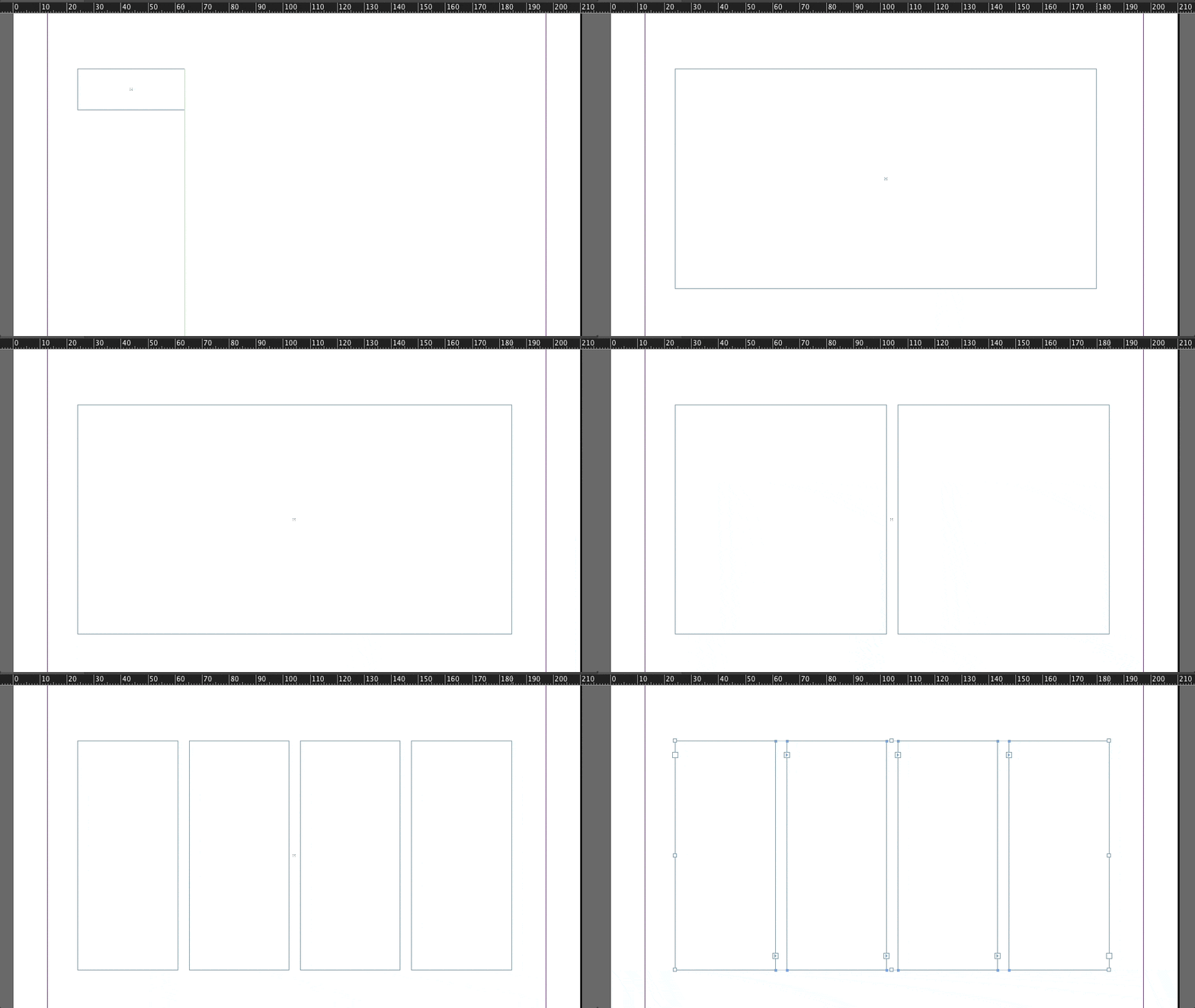
Adobe InDesign_Add columns to your next box- shortcut - designers - draw a text box
Hold the mouse down + tap the right arrow key to add columns

4. Indenting paragraph text in lists

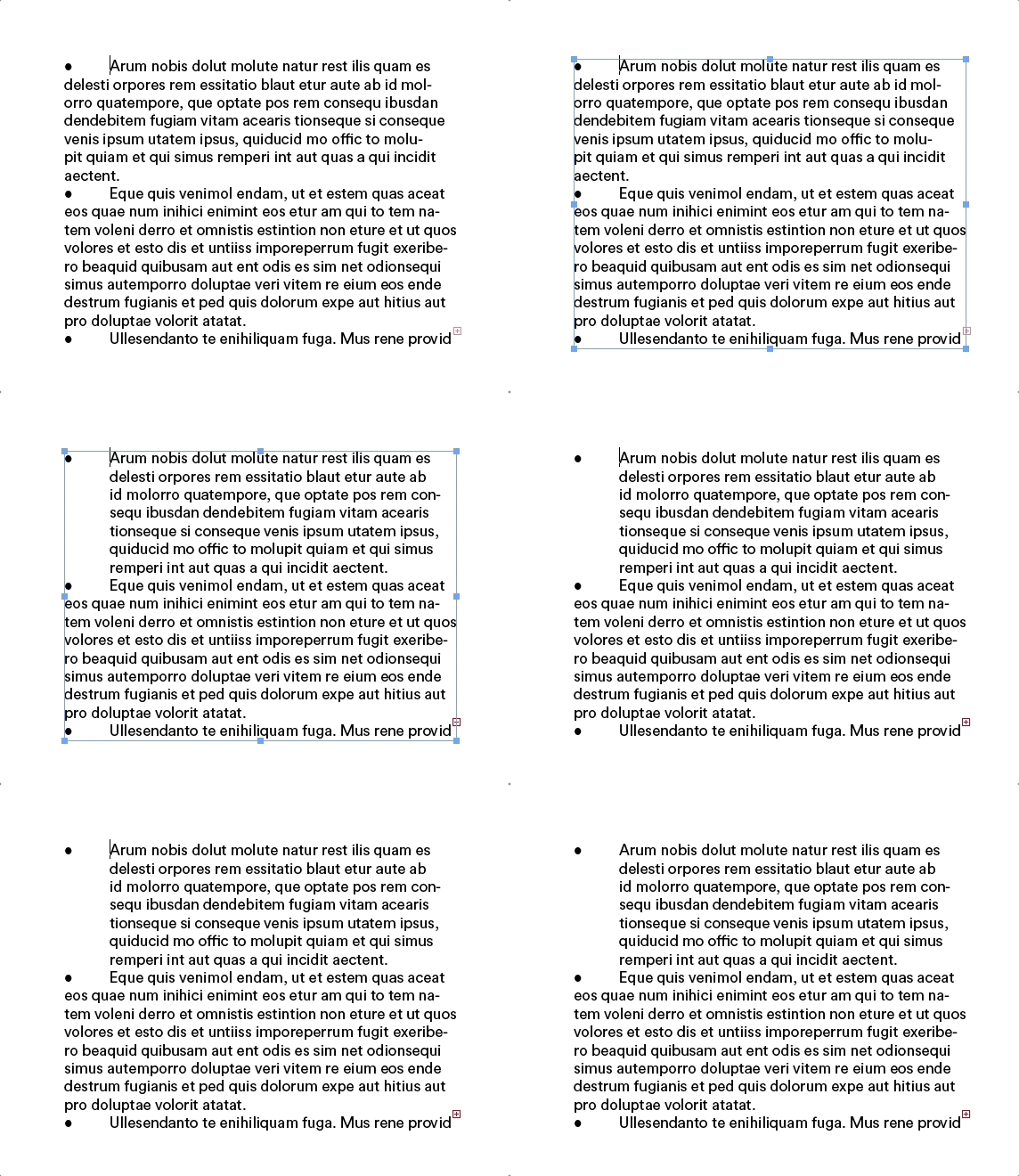
Bulleted and numbered lists are always more pleasant on the eye when the copy is indented neatly under the bullet. There is a simple solution to achieve this quickly: after adding a bullets/numbers style to your paragraph, put your mouse cursor into the first line and press command + \ . The text below will fall into line.

Adobe InDesign screenshot - Indenting_Paragraph text in lists - text neatly under the bullet
Command + will indent paragraph lines in bulleted lists

5. Balance ragged lines

For those not familiar with the term, ragged means not aligned along a margin (the opposite of ragged is flush or justified). You can create your own keyboard shortcut for this which is particularly useful for centered headings and pull quotes and helps with widows in paragraph text.

Balance ragged lines is a great feature when using Adobe InDesign but it doesn’t have a keyboard shortcut – but, you can create one:

  • Go to the Edit menu and choose Keyboard Shortcuts
  • In Product Area and select Panel Menus
  • Highlight Paragraph: Balance Ragged Lines… then assign control + command + B for example as the New Shortcut.
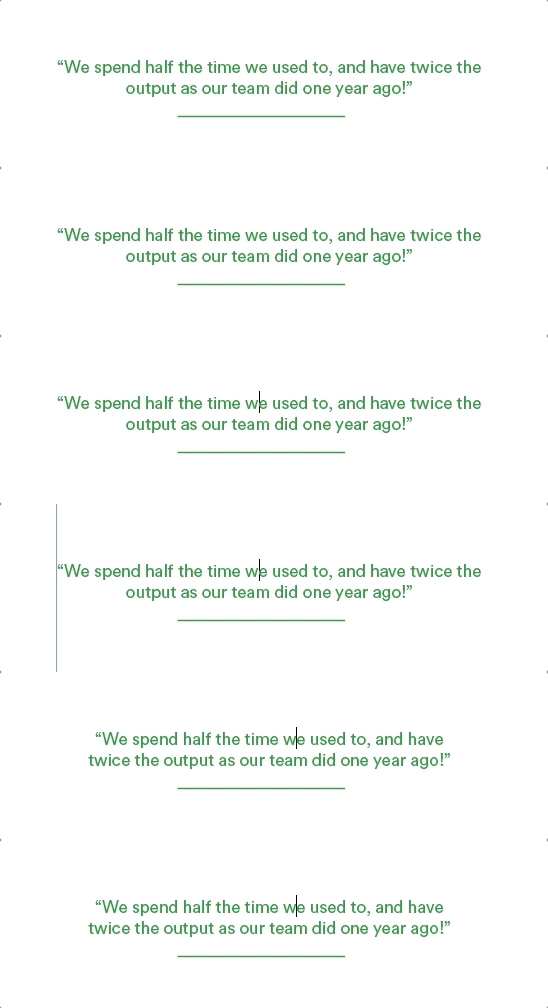
Adobe InDesign screenshot - Balanced Ragged Lines - shortcuts - centered headings and pull quotes
Its worth assigning a keyboard shortcut for balancing ragged lines

Seeking perfection when proofing designs? Check out PageProof and InDesign’s seamless integration today.

author avatar
Julia Schonrock
Julia is the Marketing Manager at PageProof. She has been immersed in developing insight-led marketing strategies for over two decades and deeply understands the challenges brands face in today’s world.

Read similar stories

How to Tango with a Tiger

Ritchie’s latest book focuses on how to build a productive and enduring client-agency relationship and ultimately helps you get the best success in this creative partnership. Do you know how you went from version 1 to version 10, and exactly what occurred in-between? Here’s our list of bare essentials for marketing compliance.

Best packaging design that inspired in 2022

Packaging design is one of the most important elements of a product. Each year packaging design is impacted by global trends. Here are our top 10 examples of great packaging designs for 2022. Full of innovative ideas, beautiful illustrations, and inventive typography. 🤩

PageProof & Airtable: Deliver creative campaigns faster

Deliver creative campaigns faster with the PageProof and Airtable native integration. The extension streamlines workflows in conjunction with the review and approval of creative elements of any project - with the added benefits of advanced proofing and review precision. Teams will love airtight timelines and pixel-perfect proofs. 💚