InDesign tips: our top 5 hidden gems for wrangling imagery

Adobe InDesign imagery tips: Hidden gems of Adobe InDesign to help designers wrangle images


InDesign imagery offers numerous benefits that enhance the visual appeal and impact of your designs. When using InDesign for image editing you can create stunning visuals that captivate your audience. You can also follow us on our 5 gems for wrangling Adobe InDesign text. Here are what we believe are the BEST Adobe InDesign tips when you’re working with imagery.

Being able to quickly wrangle imagery is a designer’s secret weapon.

1. Grid images

In the same way you can add columns to a text box as you are drawing it out, hold the mouse down as you’re drawing a graphic box and tap the right arrow key to additional boxes into a grid.

Grid Graphic Boxes - add columns to a text box as drawing it out - additional boxes
Griding those images of cats has never been easier

2. Auto-fit

If you haven’t set up auto-fit to your graphic box in your templates, shift + option + command + e will fit your image to the picture box proportionally.
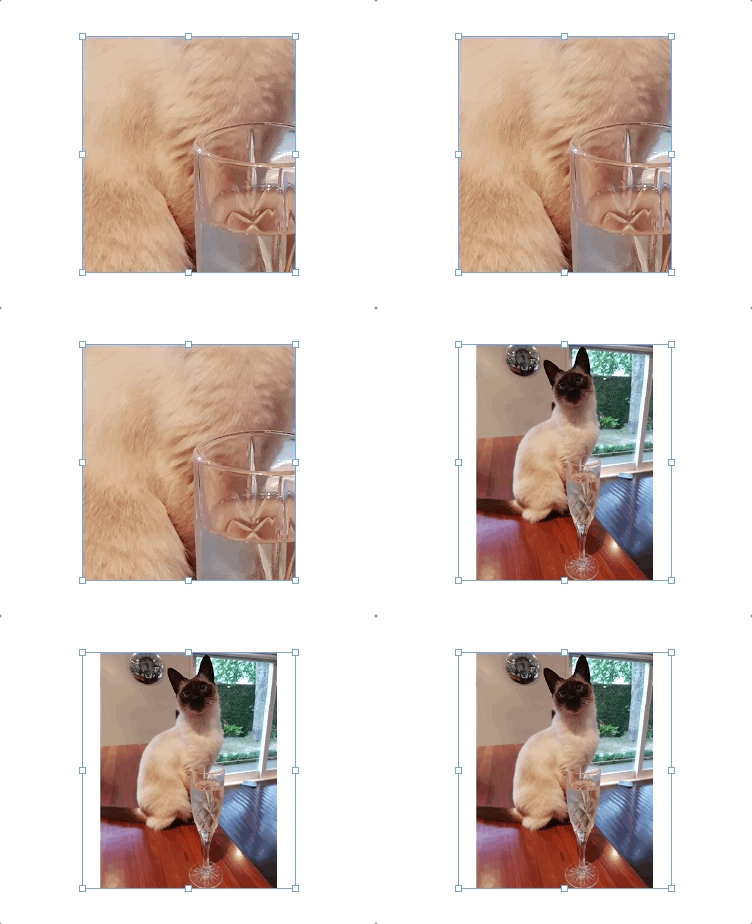
A lovely cat Birdy With Bubbles - auto fit to the picture box proportionally - graphic
Stretch your fingers to hit shift + option + command + e

3. Default auto-fit

With no documents open, you can set the default auto-fit options for your image boxes for all your new documents.

  • Go to the Object menu and select Fitting
  • Then select Frame Fitting Options…
  • Turn on Auto-Fit and choose your preferred content fitting option – fit content proportionally is a good start!

Extra tip: This will apply to all new documents you create, but you can set the default for existing documents as well.

Autofit_with Birdy the office cat - default image boxes
Birdy the office cat is perfectly positioned every time with auto fit

4. Drop shadow

Option + command + m displays the drop shadow options for your image (and for text too).
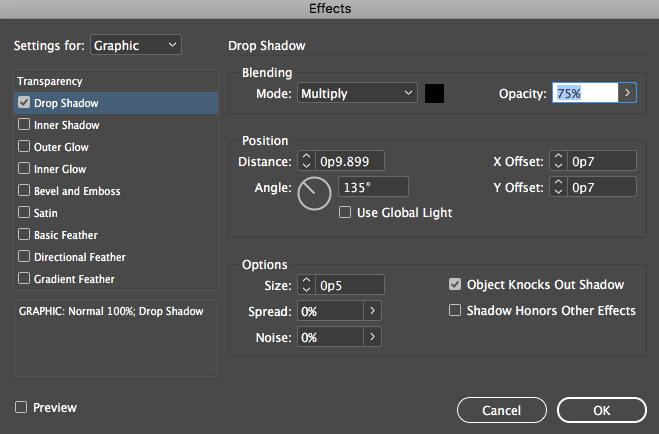
Adobe InDesign Effects - setting for Graphic - Drop Shadow
Quickly open Effects to add a drop shadow with option + command + m

5. Locking, hiding & grouping

There are some great quick-fire keyboard shortcuts for locking (command + l), hiding (command + 3) and grouping (command + g) for image and text boxes. These can be un-done using the option + command version of the same shortcut (with the exception of grouping which is shift + command).

Seeking perfection when proofing designs? Check out PageProof and InDesign’s seamless integration today.

author avatar
gemma
Gemma Rann is the CEO & Co-Founder of PageProof – the online proofing software leader for designers and marketing teams.

Read similar stories

PageProof winner at the Best Design Awards

Great design is at the heart of the PageProof brand. Therefore, it is an honor to be a awarded a bronze award for the design of our digital platform at the Best Design Awards. PageProof was also named a finalist in two other categories 🌟.

PageProof integration for monday.com: flexible and powerful

Looking for ways to enhance the way you work? Then you will love the flexibility of the monday.com and PageProof integration. Even more powerful features have just been added. There are new ways to create proofs, the ability to create a proof of a URL, a new integration recipe, and a new user interface. We help you do your best work. 💚

Need carbon copy proofing? PageProof is the answer

Want to be 100% certain that the PDF you proofed online prints as expected? With PageProof you can rest assured that the proof is a carbon copy of the original file. We even have the compliance badge from the Ghent Workgroup to show this 🙌.