Move through feedback faster with comment labels
For Enterprise teams managing complex projects across multiple departments, stakeholders, and review rounds, keeping reviewer feedback organized is critical. The more stakeholders involved, the harder this is to manage. When comments are coming in from legal, compliance, marketing, and beyond, having a clear structure around feedback keeps everyone aligned and projects moving.
Comment labels are a new feature designed for exactly this.
Available now for Enterprise teams, comment labels are customizable tags that can be applied to any comment during a review — bringing an extra layer of structure and clarity to the feedback process, helping teams categorize feedback from the moment it’s left, and work through comments more efficiently.
What are comment labels?
Comment labels are customizable tags that can be applied to any comment during a review. They help everyone involved in the approval process immediately understand the nature of a piece of feedback — without having to read through every comment in full.
Labels can reflect whatever categories or roles that matter most to your team and your workflow.
Common examples include:
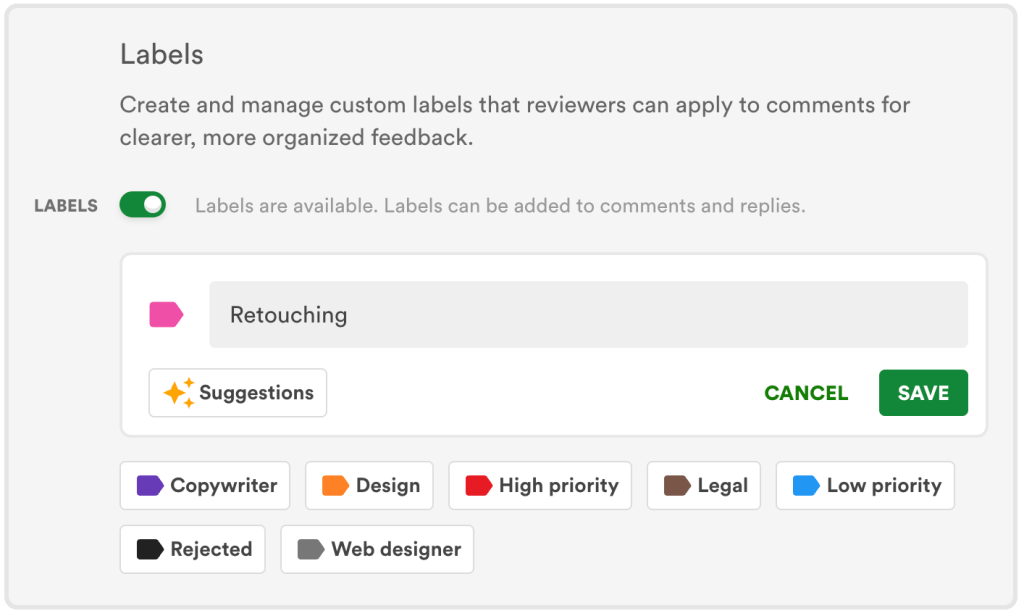
- Copywriter
- Design
- High priority
- Legal
- Rejected
- Web designer.

Because labels are fully customizable, Enterprise teams can create a label set that matches their own review workflows and internal terminology, so they feel native to the way your team already works.
Why comment labels matter
On straightforward projects, a simple list of comments is easy enough to work through. But on complex projects — packaging artwork that needs sign-off from legal, marketing, and compliance; a campaign with multiple creative variants; a regulated document requiring accessibility review — an unorganized comment list can slow things down.
Comment labels solve this by giving every piece of feedback a clear category from the moment it’s left. Editors know at a glance what kind of change is needed.
Stakeholders can see which of their comments have been actioned. And team leads can filter the comment list to focus on what matters most right now — whether that’s urgent items, compliance flags, or outstanding copy changes.
The result is a faster, more focused review process with less time spent chasing context.
How to set up comment labels
Setting up comment labels takes just a few minutes. As an Enterprise team admin, navigate to Team → Team Settings and turn on the labels toggle in the Features tab.
From there, click add a new label, give it a name, and select a color. If you want to get started quickly, hit suggestions to add commonly used labels in one click.
Once labels are created, they’re immediately available to all reviewers on your team.
Applying labels during review
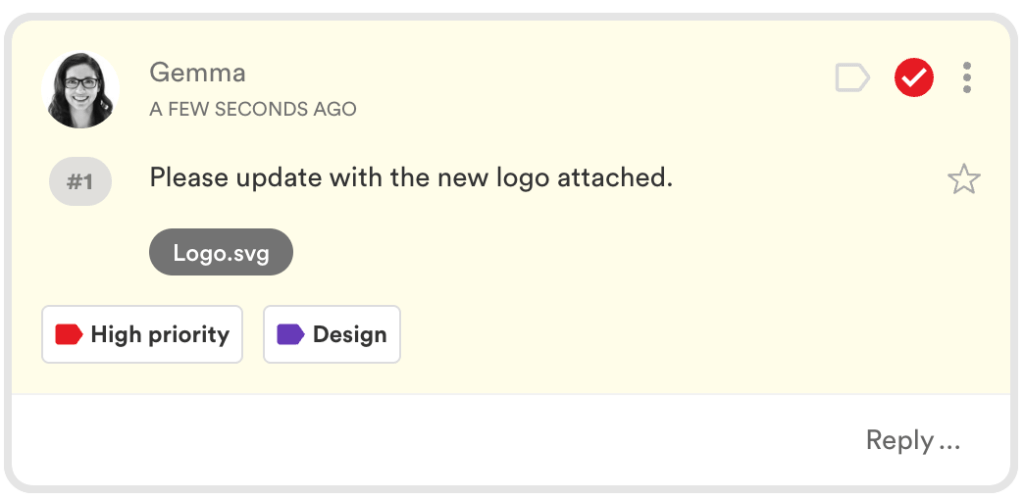
Applying a label to a comment is simple. Create a new comment or select an existing one, click the label icon, and choose from your team’s label list. One comment can carry multiple labels — useful when feedback spans more than one category.
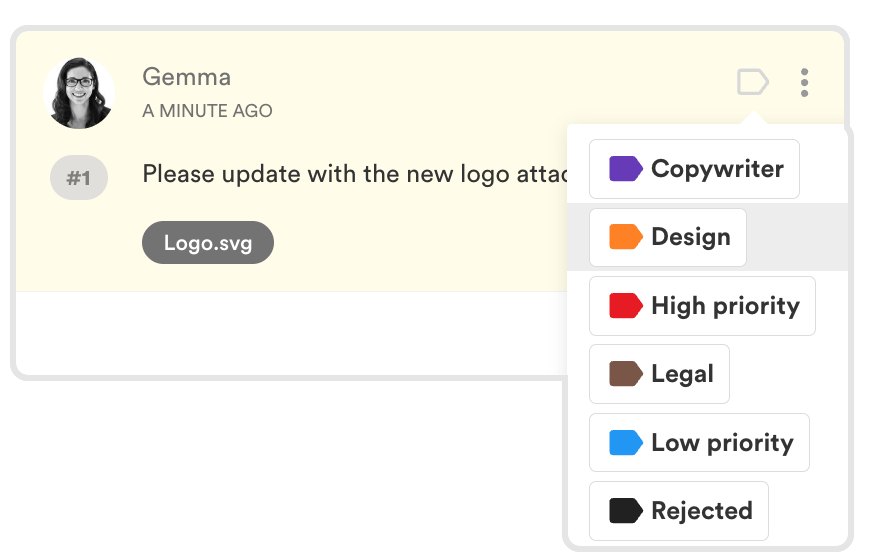
Labels appear directly inside the comment so they’re always visible in context.
Filtering comments by label
Once labels are in use, the real power becomes clear. The comment filter lets reviewers and editors narrow the comment list by label — making it easy to work through feedback by department, focus on urgent changes first, or review a specific category of feedback without distraction.
For editors managing a large to-do list across a complex proof, filtering by label transforms an overwhelming list into a structured, actionable workflow.
Best practices for getting the most from comment labels:
- Keep label names short and clear so reviewers can apply them quickly
- Avoid creating too many similar labels — a focused set works better than an exhaustive one
- Use colors thoughtfully to help reviewers scan feedback at a glance
- Align your label set with your existing approval workflow stages so labels feel intuitive from day one.
Ready to try comment labels?
Comment labels are available now for Enterprise teams. Book a demo to see them in action.
Like what you see?
Learn how leading teams speed up approvals, simplify creative reviews, and collaborate at securely at scale.