Bring creative approvals right inside Jira project workflows

If your organization runs on Jira and your team manages content approvals, you’ve likely noticed the disconnect. The platform is great at tracking work — but it wasn’t built for creative approvals. So when a design, document, or campaign asset needs review, there’s no native way to manage that process from within the Jira issue.
Feedback happens elsewhere, approvals get chased over email, and someone has to manually update the ticket when it’s finally done.
The PageProof app for Jira closes that gap.
Why we built the PageProof integration for Jira
Jira has no built-in creative review and approval workflow. It is where work gets tracked, but there is no easy way to manage creative approvals natively.
Meaning they mostly live outside the tool entirely — disconnected from the project, invisible to stakeholders, and dependent on someone remembering to update the ticket. PageProof is where content gets approved. The PageProof integration connects the two tools — so you can create proofs directly from a Jira issue, track proof status, view reviewer feedback, and have final approved files automatically attached, all from within Jira without anyone needing to chase updates.
What the integration does
Create proofs from Jira issues
Turn any Jira issue attachment into a proof in a few clicks, then finish setting it up and send it for review in PageProof.
Link proofs to Jira issues
Link any proof to its Jira issue from PageProof. Once linked, a Jira integration pill appears on the proof, so the connection is always visible.
See proof details at a glance
Add a PageProof card to a Jira issue to see every linked proof’s:
- Status and version
- Workflow step and due date
- Comment and to-do counts
- Reviewer decisions.
Team admins can also turn on proof summary comments, which post these details as a comment on the issue.
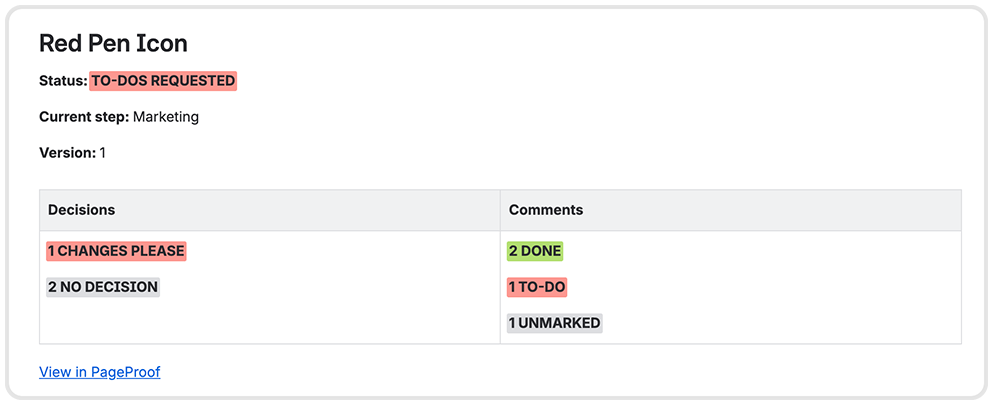
The live proof summary displayed directly on a Jira issue.
Deliver approved files automatically
When a proof reaches final approval, PageProof can automatically upload the approved file to the linked Jira issue. Your team doesn’t have to track down and upload the final asset each time. Jira has a 250MB file upload limit.
When a proof reaches final approval, the approved file can be automatically attached to the Jira issue — saving your team from manually tracking down and uploading the final asset every time.
How to get started
Install the PageProof app in Jira
A Jira admin with permission to install apps can add PageProof from the Atlassian Marketplace. Once installed, the app adds PageProof actions to your Jira issues.
Connect Jira to PageProof
Next, a PageProof team admin who is also a Jira admin connects the two. From your PageProof dashboard, click your avatar, select Team, then Integrations, choose Jira, and follow the connection instructions. Anyone using the integration will need access to the relevant Jira project.
Advanced options to customize the integration
Team admins can configure additional settings from the Jira integration cog — including controlling which Jira user is associated with proof actions, whether proof links and summaries appear on issues, and whether approved files are automatically attached.

The Jira integration card in PageProof — click the cog to configure advanced settings for your team.
Ready to connect your approvals to Jira?
Already a PageProof customer? Get the PageProof for Jira app from the Atlassian Marketplace and have your team set up in minutes. New to PageProof? Book a demo below to see the integration in action.
Like what you see?
Learn how leading teams speed up approvals, simplify creative reviews, and collaborate at securely at scale.