
Adobe InDesign is no stranger to shortcut keys. You can also follow on from our top 5 hidden gems for wrangling imagery. Did you know at the last count there were over 400 of them defined from a possible 1300? That’s some serious shortcuts if you can remember them – AND you can define extras of your own. Being able to quickly wrangle text is a designer’s superpower. Here is our guide to using Adobe InDesign shortcuts that are so helpful and rarely discovered.
5 InDesign shortcuts not to be missed
We’ve boiled down our top 5 shortcuts related to text with the premise our team had to find them AMAZING and rarely discovered.
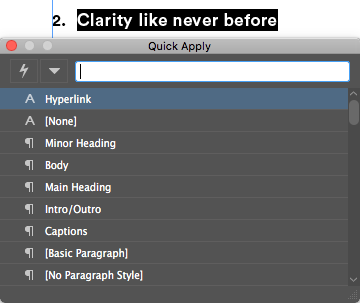
1. Quick Apply
Style your text at lightning speed with quick apply – have your character and paragraph styles set up first, then you can quickly apply them to your selected text using command + enter.
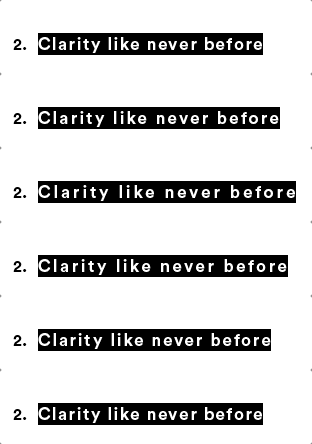
2. Tracking & leading
Select your text, then use option + arrow keys (or alt + arrow keys) and you can adjust the tracking (left & right arrows) and leading (up & down arrows).
Extra tip: You can adjust the increments of these adjustments in InDesign Preferences.
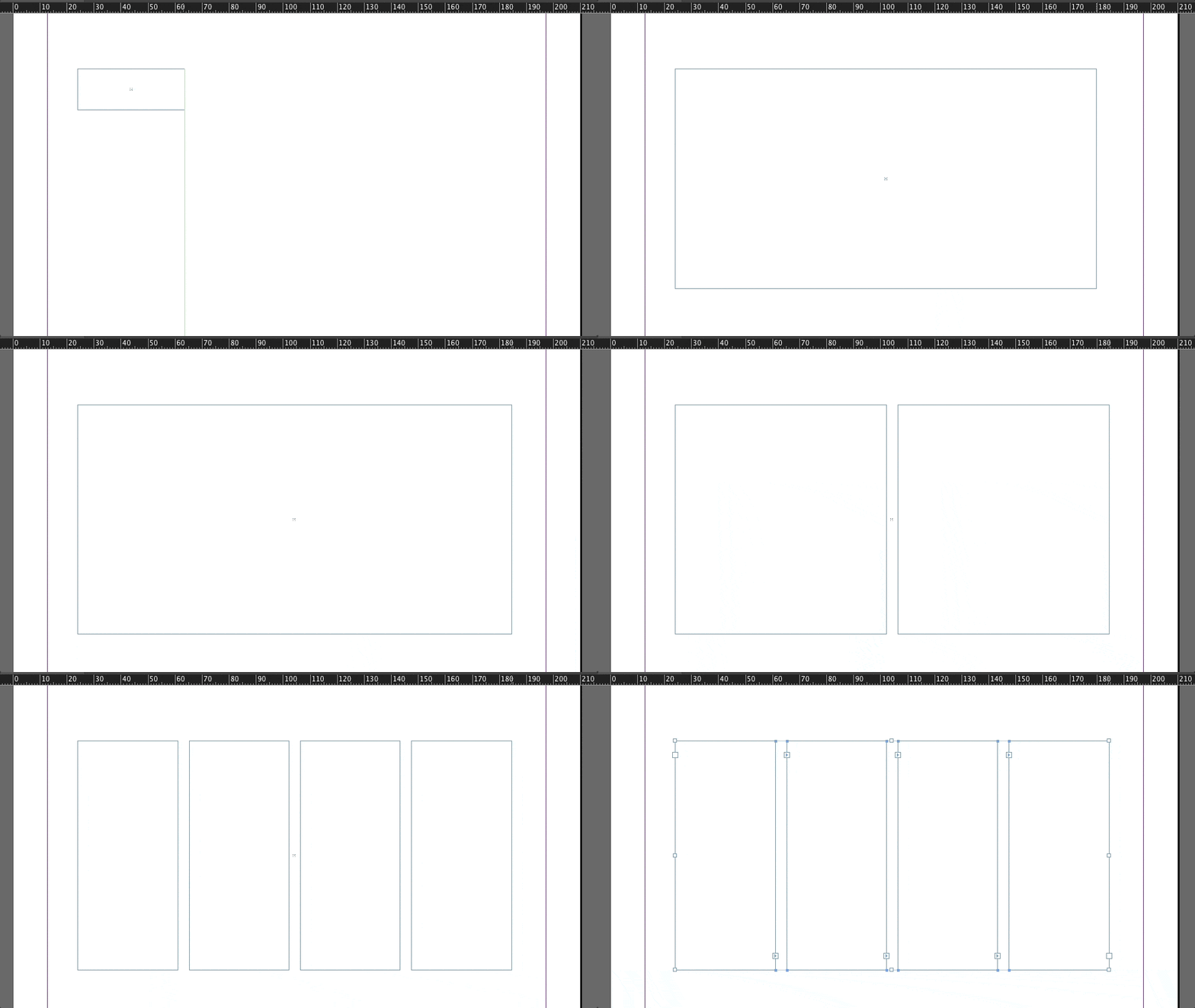
3. Add columns to your text box
If you draw a text box and then
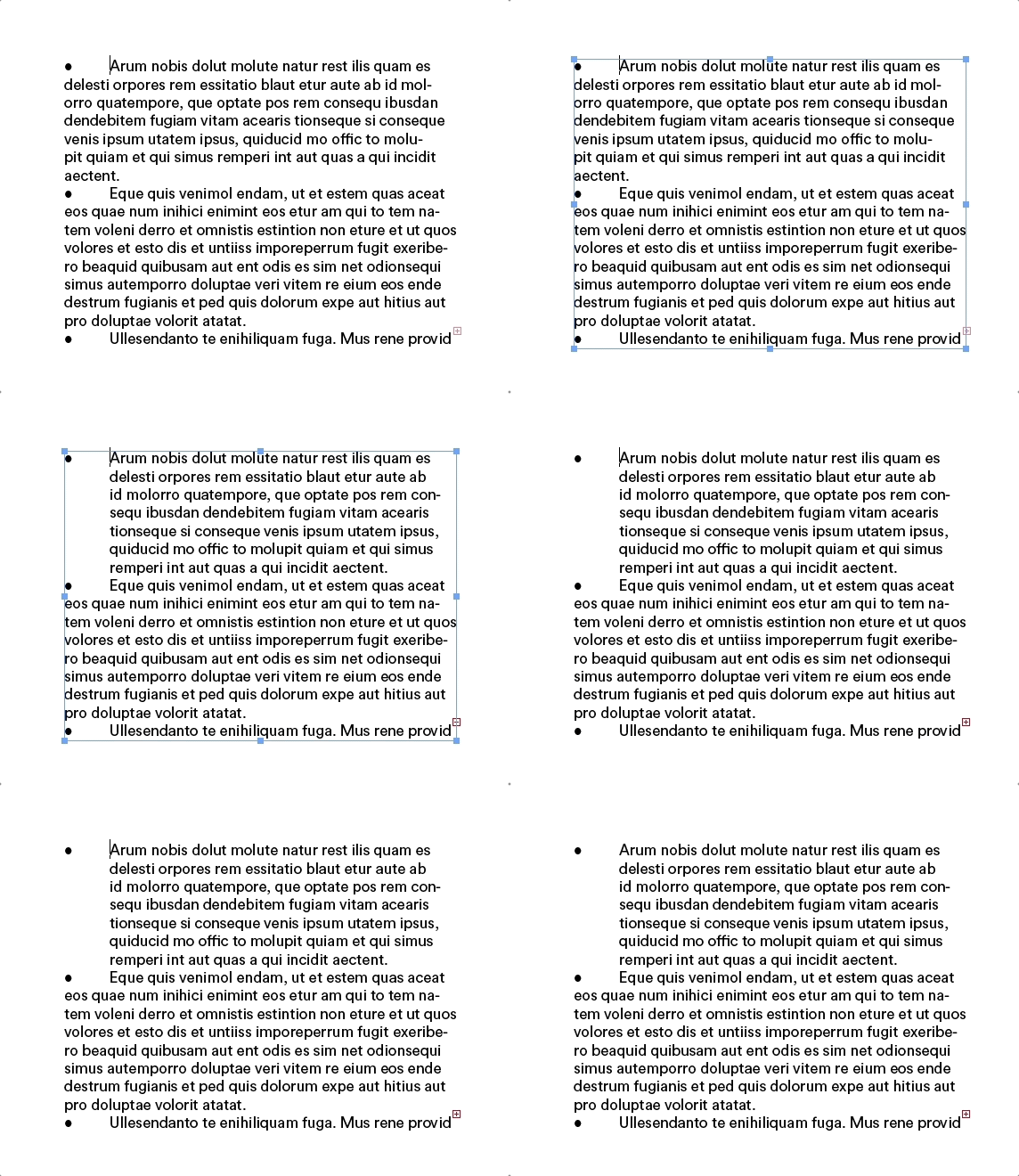
4. Indenting paragraph text in lists
Bulleted and numbered lists are always more pleasant on the eye when t
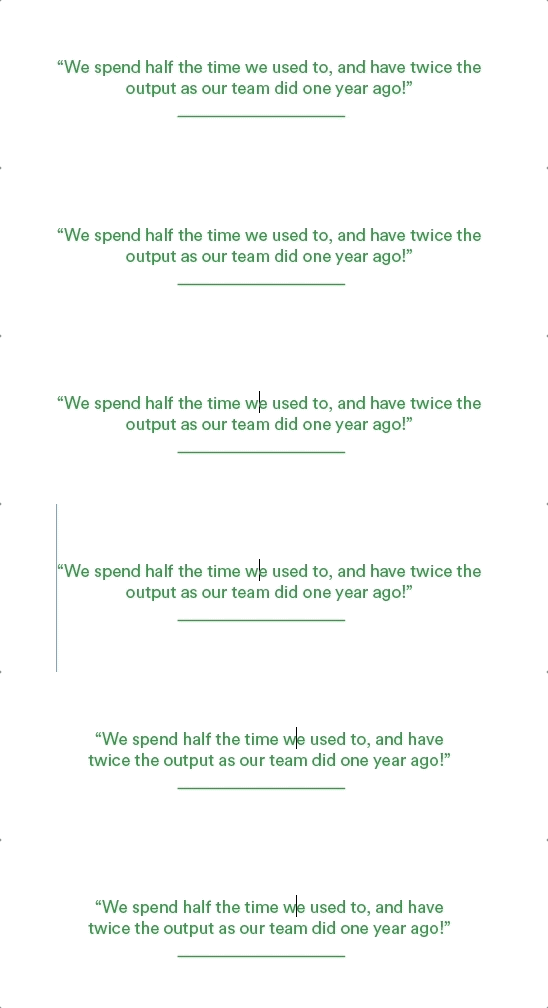
5. Balance ragged lines
For those not familiar with the term, ragged means not aligned along a margin (the opposite of ragged is flush or justified). You can create your own keyboard shortcut for this which is particularly useful for centered headings and pull quotes and helps with widows in paragraph text.
Balance ragged lines is a great feature when using Adobe InDesign but it doesn’t have a keyboard shortcut – but, you can create one:
- Go to the Edit menu and choose Keyboard Shortcuts…
- In Product Area and select Panel Menus
- Highlight Paragraph: Balance Ragged Lines… then assign control + command + B for example
as the New Shortcut.
Seeking perfection when proofing designs? Check out PageProof and InDesign’s seamless integration today.
